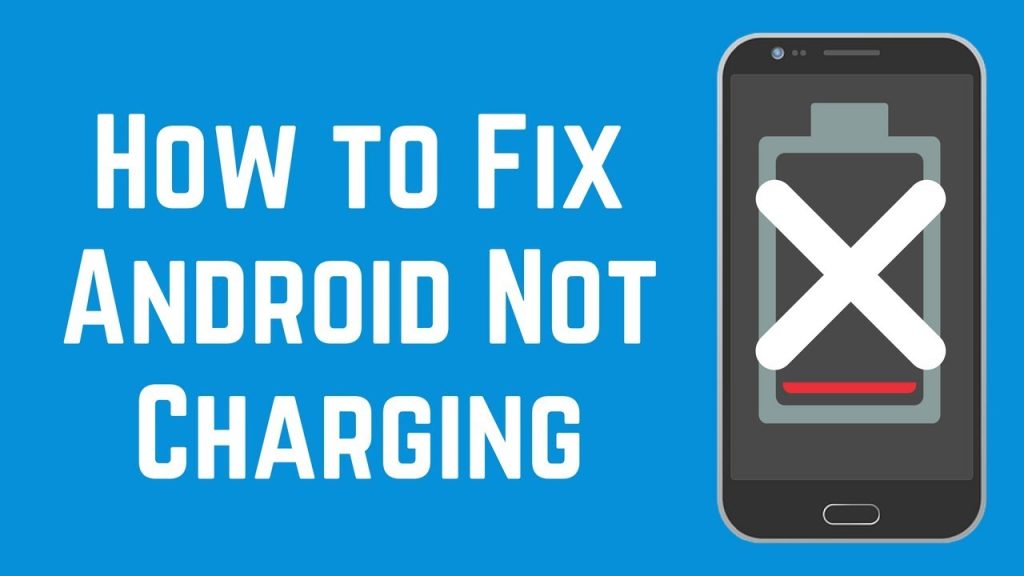
If your Android phone refuses to charge no matter which cable you try, you’re not alone. This guide covers android wont charge fixes that actually work — from cleaning the charging port to resetting battery settings. Whether you’re using a Samsung, Xiaomi, or Pixel, these steps apply to all Android 13–15 phones.
Charging problems can be caused by anything from hardware issues to temporary software glitches. Before rushing to a repair shop, work through these 7 proven android wont charge fixes to bring your battery back to life.
1. Check Your Cable and Adapter
Start by ruling out hardware issues. Try using the original charger or a certified replacement. Avoid cheap cables — they often don’t meet power delivery standards and can prevent your device from charging properly.
If you have access to another Android phone, swap chargers and cables to see if the issue follows the cable or stays with the device. This simple test helps identify whether you need a new adapter or if the problem lies with your phone.
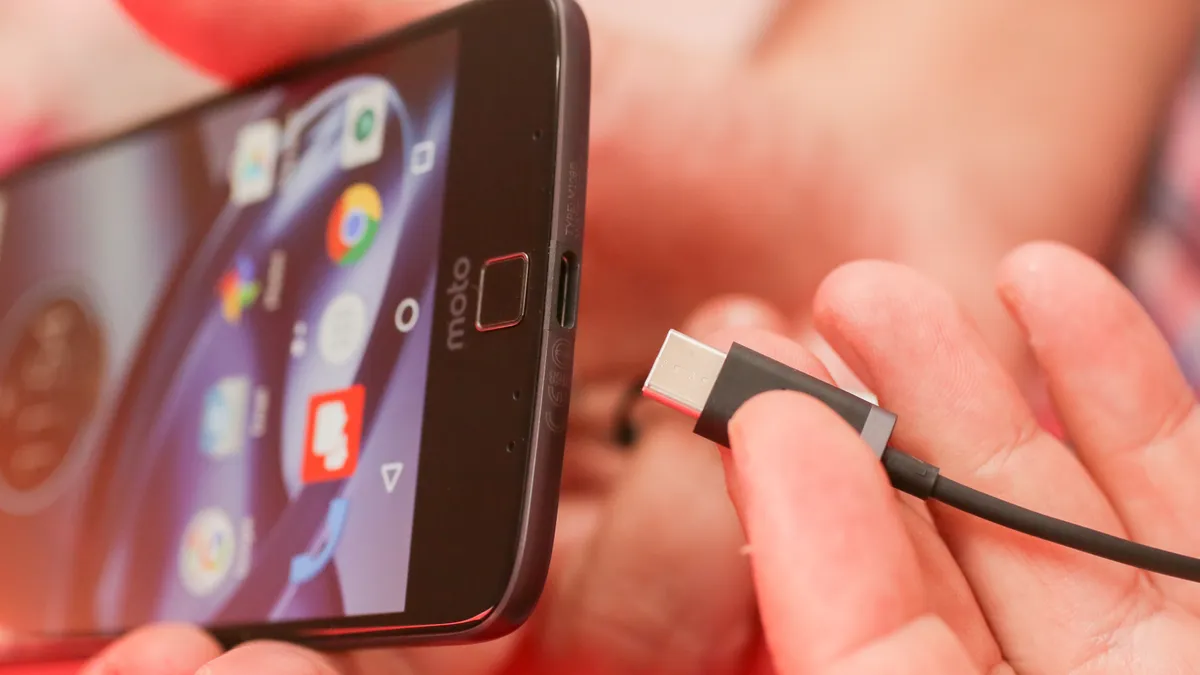
2. Inspect and Clean the Charging Port
One of the most overlooked android wont charge fixes involves checking the charging port. Use a flashlight to look for dust, lint, or corrosion. A clogged port can stop your cable from making proper contact. Clean gently using a dry toothbrush or compressed air.
3. Try a Different Power Source
Plug the charger into another outlet or USB port. Avoid using laptops or power banks while diagnosing — use a wall outlet instead. If you’re using a multi-plug or surge protector, connect the charger directly to the wall to eliminate current inconsistencies.
4. Check for Moisture or Overheating
Android’s charging protection system blocks power when it detects moisture or heat. If you see a water-drop icon or a warning about temperature, unplug immediately. Dry the port naturally or place the phone in front of a fan for 15–30 minutes before retrying.
5. Reset Battery and Charging Settings
Software glitches can confuse your phone’s charging logic. Go to Settings → Battery → Battery Usage → Reset Stats or similar depending on your phone model. Also, disable “Battery Optimization” for key system apps like Google Play Services and USB Debugging if you use developer tools.
This reset helps recalibrate battery data and clears any stuck background restrictions that may affect charging.
6. Use Charging Diagnostic Apps
Apps like
AccuBattery
and
Ampere
display charging voltage and amperage in real-time. They’re handy for testing whether your phone is receiving stable power from your cable and adapter.
If these apps show fluctuating readings, your charger might not be providing enough current. Replace it with a certified one or test another USB outlet.
7. Restart or Safe Boot Your Phone
Sometimes, buggy apps can interfere with the system’s charging control. Restart your phone or boot into Safe Mode by holding the power button, then pressing and holding “Restart.” This loads only core system apps. If charging works fine in Safe Mode, uninstall recently added apps.
8. Brand-Specific Charging Fixes
Each manufacturer has unique power management features that can block charging in certain cases:
- Samsung: Go to Settings → Battery and Device Care → Battery → Charging Protection and toggle it off temporarily.
- Xiaomi: Open Settings → Battery → Battery Saver → Ultra Battery Saver and disable it — this mode blocks background charging.
- Pixel: Reset adaptive charging under Settings → Battery → Adaptive Charging and plug in for a few minutes to recalibrate.
9. Prevent Charging Issues in the Future
Now that you know the best android wont charge fixes, it’s smart to prevent future issues. Avoid charging your phone overnight, use surge-protected outlets, and periodically clean your charging port. Keep your device’s software updated to ensure compatibility with modern fast-charging standards.
Final Thoughts
Most charging problems boil down to simple fixes — a bad cable, a dusty port, or an overactive battery optimization feature. Follow these android wont charge fixes step by step, and you’ll likely solve the issue without a trip to the repair shop.
💡 Tip: After cleaning your charging port, clear system cache to boost overall responsiveness. Our guide on speeding up old Android phones explains how to safely remove junk files without affecting performance.
– AndroidTechZone Editorial Team