10 Hidden Android Settings You Should Change (2025)
Android offers more customization and control than any other mobile OS — but most of that power is hidden deep inside menus the average user never touches. These lesser-known features impact your battery life, privacy, network behavior, notifications, and overall speed. If you’ve never explored them, you’re leaving a ton of performance and convenience on the table.
In this 2025 guide, we walk you through ten hidden Android settings that make a real, noticeable difference. We expanded each tip with clear examples, advanced explanations, brand-specific variations (Samsung, Pixel, Xiaomi, OnePlus), and troubleshooting notes to ensure you get the best possible results.
We’ll also include internal references to the previous articles you’ve read — including our deep guide on
how to manage app permissions safely — to keep your Android knowledge chain connected and easy to navigate.
- 1. Disable Unnecessary System Permissions
- 2. Turn On “Permission Auto-Reset”
- 3. Restrict Background Activity
- 4. Use Android’s Hidden “App Security” Panel
- 5. Customize Quick Settings Tiles
- 6. Disable Wi-Fi & Bluetooth Scanning
- 7. Turn Off Ad Personalization
- 8. Enable Developer Options (Safely)
- 9. Optimize Battery Usage Per App
- 10. Disable Unused Device Connections
- FAQ
Let’s start unlocking the hidden controls that can transform how your Android device works.
1. Disable Unnecessary System Permissions
One of the most overlooked features in Android is the ability to completely audit and remove old permissions from apps that shouldn’t have them. Many users install apps, grant permissions, and forget about them — but the app keeps that access forever unless you manually revoke it.
With Android 14–16, Google added deeper permission categories, clearer explanations, and better grouping. But you still have to review them manually to prevent hidden tracking, unnecessary battery drain, or apps pulling data they simply don’t need.
Examples of common abuses:
- Games collecting location data
- Shopping apps requesting microphone access
- Wallpaper apps reading photos
- Random tools asking to access contacts
How to access the Permission Manager:
- Open Settings → Privacy → Permission manager
- Select a sensitive category (Microphone, Camera, Location, Files)
- Review apps under “Allowed” and “Denied”
- Tap any app to adjust access
For a deeper breakdown of permission types, risk levels, and per-app auditing steps, read our full guide:
How to Manage App Permissions Safely on Android.
2. Turn On “Permission Auto-Reset”
Android introduced “auto-reset” several versions ago, but many users still have it disabled — often because early OEM interfaces hid it. This feature automatically revokes permissions from apps you haven’t used in a long time. If you installed an app, used it once, and forgot it existed, Android will protect you by removing its access to sensitive data.
Why you should enable it:
- Prevents abandoned apps from running unchecked
- Reduces long-term background tracking
- Keeps your Privacy Dashboard cleaner
- Improves device security for non-expert users
How to enable auto-reset:
- Go to Settings → Apps
- Tap Unused apps (or “Auto-reset permissions”)
- Enable Remove permissions and free up space
Once enabled, it works silently in the background. You’ll occasionally see a notification when permissions were reset — that’s normal and a good sign.
3. Restrict Background Activity
Background activity is one of the most powerful hidden settings for extending battery life. Apps are allowed to run background processes, refresh data, send notifications, and perform analytics even when you’re not actively using them.
When this becomes a problem:
- Apps constantly refreshing ad feeds
- Navigation apps polling location even when closed
- Messaging apps syncing media every hour
- Shopping apps pinging servers to update prices
Restricting background access forces apps to behave only when you open them. For most apps, you won’t notice any difference — except longer battery life and smoother performance.
How to restrict background use:
- Go to Settings → Apps
- Select any app → Battery
- Choose Restricted
How to Speed Up an Old Android Phone
Be more cautious with messaging or navigation apps, as restricting them might delay notifications. For everything else, go wild — especially games, shopping apps, and social media utilities.
4. Use Android’s Hidden “App Security” Panel
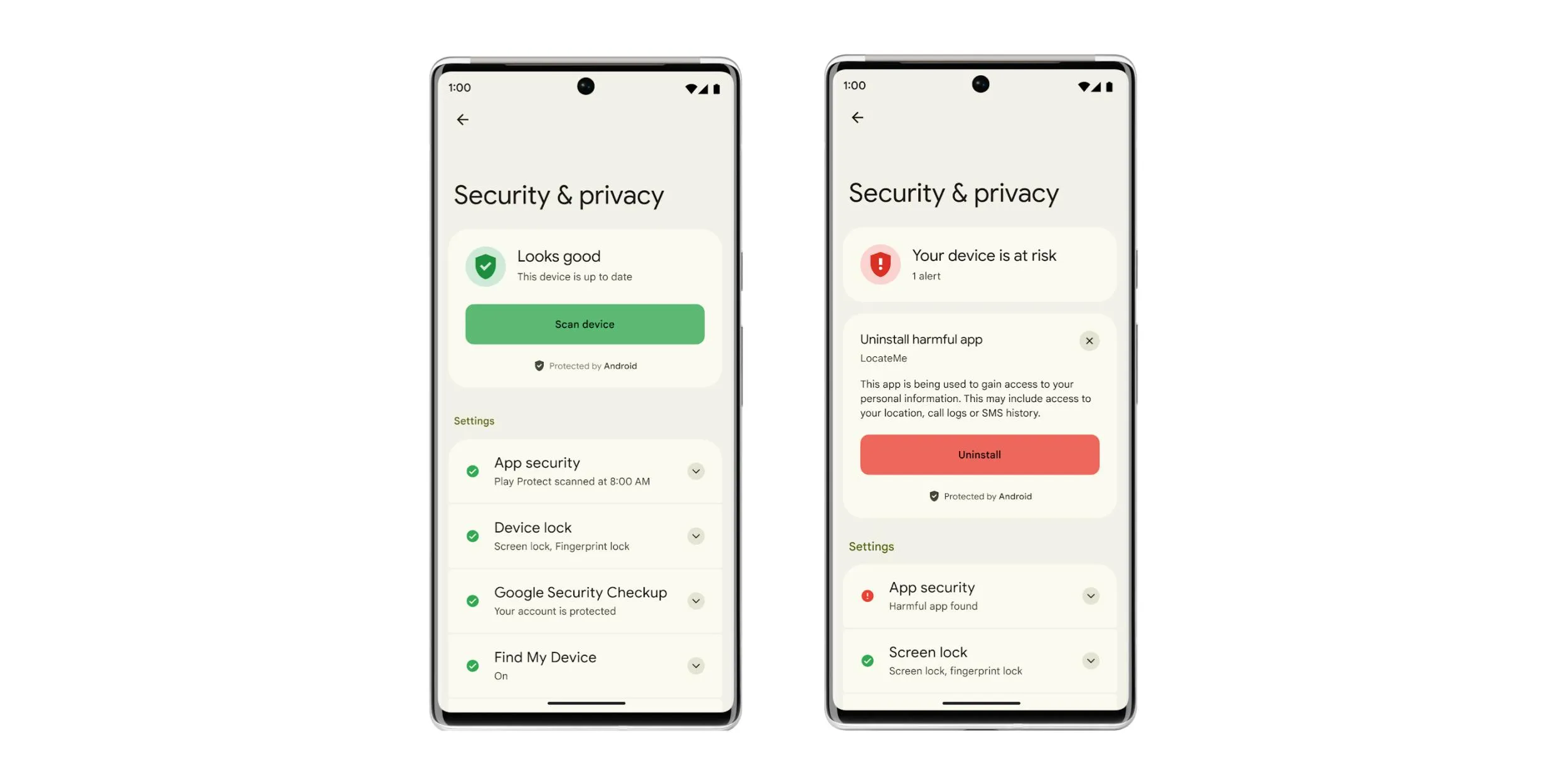
Few users know that Android includes a deeper “App Security” section hidden inside the Security & Privacy menu. This area shows engine-level warnings, Play Protect flags, and behavior-based alerts that don’t appear in normal app info screens.
This hidden panel highlights:
- Apps requesting too many permissions
- Apps with known security flaws
- APK-sideloaded apps with improper signatures
- Apps using dangerous legacy permissions
How to access it:
- Open Settings → Security & privacy
- Tap App security
This is one of the most underrated Android security features — and Google rarely advertises it.
5. Customize Quick Settings Tiles
The Quick Settings panel is one of the most powerful parts of Android — but most people use only the first row of tiles. Hidden at the bottom of the editing menu are several system tools you can enable to make your workflow dramatically faster.
Some of the best hidden tiles include:
- Extra dim (ultra-low brightness)
- Screen recorder
- Notification history
- QR code scanner
- Device controls (smart home)
- One-handed mode
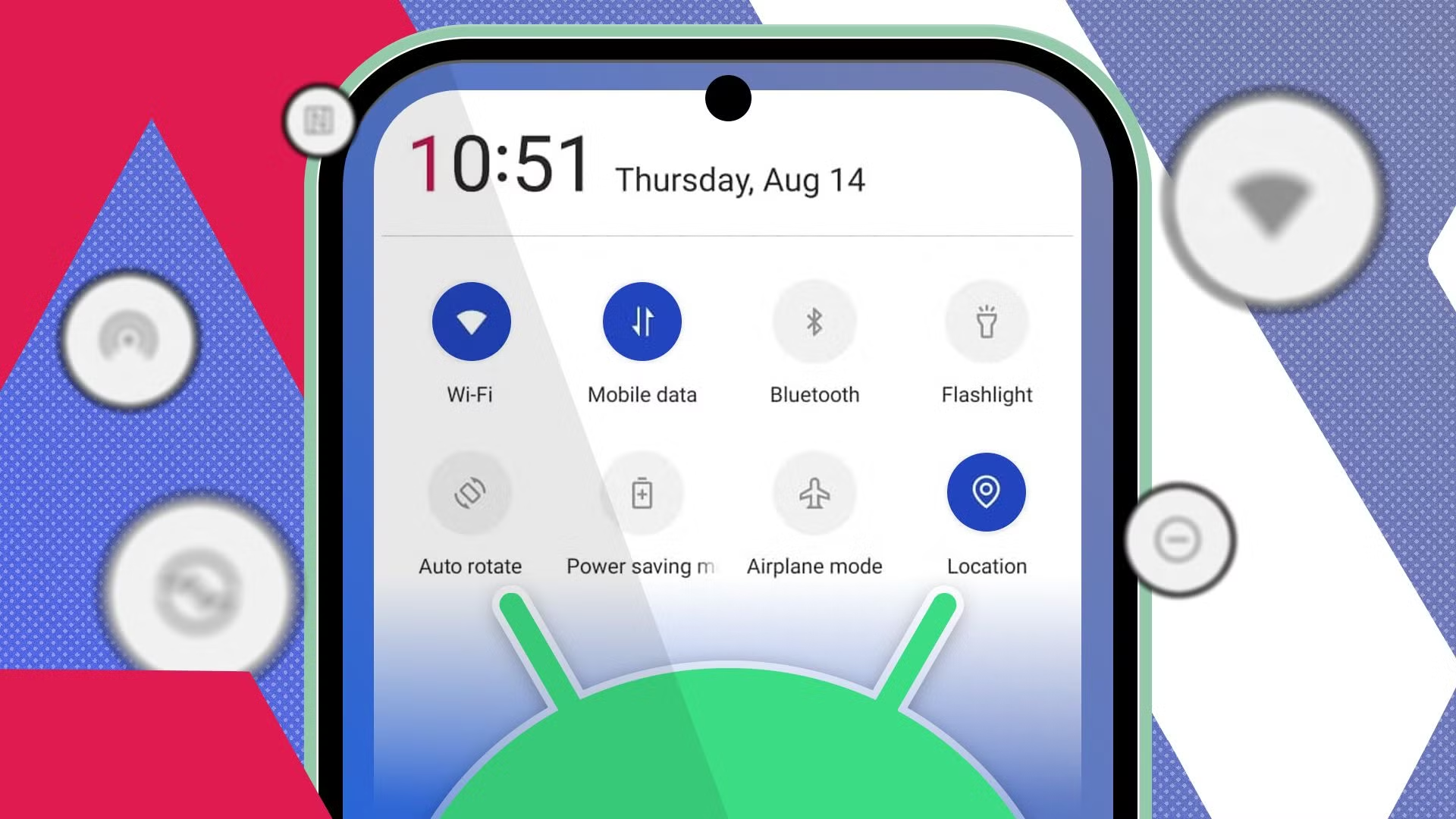
How to customize:
- Swipe down twice to fully open the panel
- Tap the Edit icon (pencil)
- Drag hidden tiles into the active section
This is especially useful if you frequently toggle Battery Saver, Hotspot, Dark Mode, or Cast.
6. Disable Wi-Fi & Bluetooth Scanning
Most users assume turning off Wi-Fi or Bluetooth stops all scanning, but Android keeps scanning in the background for location accuracy unless you toggle off two hidden switches. These background scans allow apps and system services to detect nearby networks or beacons even with your radios “off.” While helpful for navigation, this feature drains battery and adds unnecessary background activity.
What this changes:
- Stops passive Wi-Fi tracking
- Reduces Bluetooth beacon polling
- Improves standby battery life
- Prevents unnecessary wake-ups from system services
How to disable scanning:
- Go to Settings → Location
- Tap Wi-Fi & Bluetooth scanning
- Disable both toggles
7. Turn Off Ad Personalization
Your Android phone assigns you an advertising ID that apps and networks use to target ads based on your behavior. Even if you’re comfortable with ads, leaving personalization enabled allows dozens of apps to profile your usage habits.
Fortunately, Android allows you to disable or even delete this ID completely.
Why you should turn this off:
- Reduces tracking across apps
- Prevents interest-based profiling
- Stops apps from building marketing profiles
- Better privacy with zero downside to performance
How to disable ad personalization:
- Go to Settings → Privacy
- Tap Ads
- Select Delete advertising ID or “Opt out of ad personalization”
8. Enable Developer Options (Safely)
Developer Options is one of Android’s most powerful hidden menus, but it can be intimidating. When used safely, it unlocks performance improvements, UI speed boosts, better Bluetooth audio, and tighter control over background processes.
Enable Developer Options:
- Open Settings → About phone
- Tap Build number seven times
- Enter your lock screen PIN when prompted
Safe Developer Options tweaks:
1. Animation scale → 0.5x
Speeds up transitions and makes your phone feel faster instantly.
2. Disable absolute volume
Improves Bluetooth headphone control and fixes audio balancing issues.
3. Background process limit
Prevents heavy apps from staying alive in the background unnecessarily.
9. Optimize Battery Usage Per App
Android automatically manages battery usage, but many apps mark themselves as exempt from optimization — especially social media apps, shopping apps, and games. This lets them run in the background more freely than they should.
Optimizing battery usage on a per-app basis gives you direct control—especially if you notice random battery drops, heat, or foreground wakeups.
How to optimize battery usage per app:
- Go to Settings → Battery
- Tap Battery usage
- Choose any app → Set to Optimized
When to use “Restricted” mode:
- For apps that don’t need instant notifications
- Apps that stay active even when closed
- Games, shopping apps, and utilities
- Apps causing heat or battery drain
Android Won’t Charge? Try These Fixes
Brand differences matter here: Samsung and Xiaomi devices are more aggressive with background management than Pixel or OnePlus, so some apps may require re-optimizing after system updates.
10. Disable Unused Device Connections
Your Android phone constantly scans for nearby devices unless you turn off unused wireless features manually. This includes NFC, UWB (for precise distance sensing), Nearby Share, Cast, and sometimes even hotspot scanning. While these features are extremely useful, leaving them enabled all the time wastes battery and introduces security risks.
Where to find these options:
- Go to Settings → Connected devices
- Disable NFC, Nearby Share, and UWB if you don’t actively use them
You can also add these toggles to your Quick Settings panel for faster control — especially helpful for NFC and Cast, which some users only need occasionally.
Frequently Asked Questions
Which hidden setting improves battery life the most?
Restricting background activity and disabling Wi-Fi/Bluetooth scanning provide the biggest battery gains with no negative side effects.
Is Developer Options safe to use?
Yes — as long as you stick to basic settings like animation scales, Bluetooth audio tweaks, and background process limits.
Should I turn off ad personalization?
Yes. It reduces tracking across apps and prevents marketing networks from building a behavioral profile of your activity.
Do these hidden settings work on Samsung, Pixel, Xiaomi, and OnePlus?
Yes — though the menus may look slightly different. Pixel devices show the pure version of Android settings, while Samsung and Xiaomi may bury these options deeper inside submenus.
Author: AndroidTechZone Editorial • Updated: 2025