
Is your Android battery dropping faster than it should? You’re not alone. Android 16 brings major power-saving improvements, but some apps still abuse background activity, use hidden services, or keep wakelocks that drain your battery even when you’re not touching your phone. In this guide, we’ll help you identify which apps are responsible, stop unnecessary battery drains, and fine-tune your Android for long-lasting daily performance.
Category: How-To → Optimize
- Why Your Battery Drains Fast
- Identify Battery-Hungry Apps
- Stop Background Activity & Restrict Apps
- Use Android’s Built-In Optimization Tools
- OEM-Specific Battery Controls (Samsung, Xiaomi, Oppo, OnePlus)
- Network & Connectivity Tweaks
- Charging Habits That Improve Battery Life
- When to Reset App Data or Reinstall Apps
- Advanced Fixes for Persistent Battery Drain
- Deep Dive: Wakelocks & How Apps Keep Your Phone Awake
- Hidden Android Settings to Reduce Battery Usage
- App-by-App Breakdown: Which Categories Drain the Most
- Pixel (Android 16) Battery Tips
- Battery Health — When to Replace the Battery
- Final Summary
- FAQs
Why Your Battery Drains Fast on Android
Battery drain is usually caused by apps or system services waking your phone too often, preventing it from entering Doze mode, or consuming power in the background. The most common sources include:
- Apps running background sync repeatedly (social media, messaging, shopping apps)
- Location services running constantly (maps, delivery apps)
- High screen-on time combined with high brightness
- Apps keeping wakelocks that prevent sleep
- Outdated or misbehaving apps after an Android update
- Network scanning (Wi-Fi, Bluetooth, mobile data switching)
Identify Battery-Hungry Apps
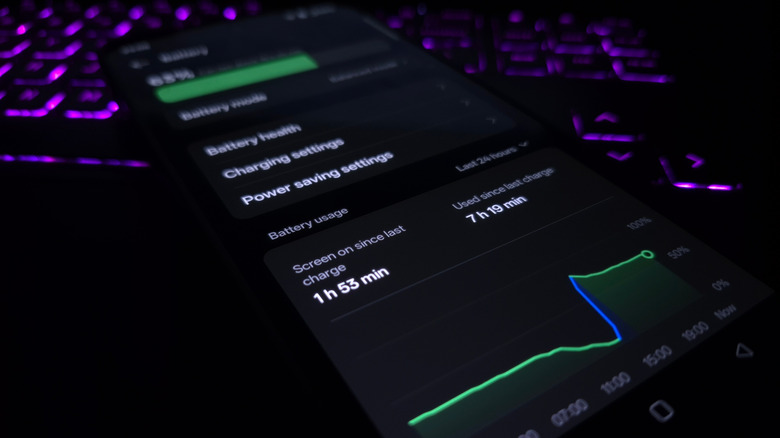
Your first step is checking which apps are using most of your battery. This immediately reveals whether the problem is caused by background sync, location, a rogue app, or a recent update.
Check Battery Usage (Android 16)
- Open Settings
- Tap Battery
- Tap Battery usage
- Sort by Last 24 hours or Since last full charge
Look for apps with unusually high numbers, especially those showing:
- High background usage
- High mobile data usage
- Unusual wakelocks or GPS usage
Common battery-loving apps
- Facebook, Instagram, TikTok, Snapchat
- Google Maps, Waze, any location-heavy app
- Messenger, Telegram, WhatsApp (if unrestricted)
- Food delivery apps (Uber Eats, DoorDash)
- VPN apps with “always-on” mode
Stop Background Activity & Restrict Problematic Apps
Once you’ve identified which apps are responsible, the next step is restricting their background behavior.
Restrict background activity
- Settings → Apps
- Choose the app
- Tap Battery
- Select Restricted
This will limit how often the app can wake your device, sync data, or run background services.
Disable unnecessary auto-start / launch at boot
Some apps automatically launch when you restart your phone. These should be controlled, especially on Xiaomi, Oppo, and Samsung devices.
- Go to Settings → Apps → Auto-launch (if available)
- Disable auto-launch for non-essential apps
Turn off background data
- Settings → Network & internet → Data usage
- Select the app
- Disable Background data
This prevents the app from using mobile data in the background, which often reduces battery drain as well.
Use Android’s Built-In Optimization Tools
Android 16 includes optimization options that automatically reduce battery drain. Use these before switching to third-party battery savers (which we generally do not recommend).
Battery Saver (Power Saving Mode)
Enabling Battery Saver limits background processing across the system. Use it when traveling, on low battery, or when battery drain is extremely high.
Adaptive Battery
Adaptive Battery learns your usage patterns and restricts apps you rarely open. Enable it here:
Settings → Battery → Adaptive Battery
Disable unused sensors
If you don’t use features like NFC, Bluetooth, or Wi-Fi scanning, turn them off to avoid unnecessary battery drain.
OEM-Specific Battery Controls (Samsung, Xiaomi, Oppo, OnePlus)
Different brands add their own battery management tools. Understanding these is crucial because they can override Android’s default settings.
Samsung (One UI)
- Settings → Battery → Background usage limits
- Enable Put unused apps to sleep
- Enable Deep sleep for rarely used apps
- Device Care → Battery → App power management → set app sleep behavior
Xiaomi / Redmi / Poco (MIUI)
- Settings → Battery → Battery saver
- Check App battery saver for each app
- Disable auto-start for non-essential apps
- Security app → Permissions → Autostart (block unwanted apps)
Oppo / Realme (ColorOS)
- Settings → Battery → App management
- Disable Background freezing for essential apps (prevents over-aggressive kills)
- Use High performance mode sparingly — it drains battery fast
OnePlus (OxygenOS)
- Settings → Battery → Advanced battery
- Enable Optimized charging
- Review background restrictions under each app
Network & Connectivity Tweaks
Network components—Wi-Fi, Bluetooth, mobile data, and GPS—use significant power when poorly configured.
Turn off scanning features
- Settings → Location → Wi-Fi scanning: Off
- Settings → Location → Bluetooth scanning: Off
Switch to 4G/LTE if 5G drains too fast
Older 5G modems are less efficient. If your phone gets hot or loses battery quickly on 5G:
- Settings → Network → Mobile network → Preferred network type: LTE/4G
Disable always-on VPN when not needed
Always-on VPNs hold constant wakelocks. Disable them while on trusted networks.
Charging Habits That Improve Battery Life
Apps aren’t the only reason your battery drains. Bad charging habits affect long-term capacity.
- Avoid letting the battery drop below 10%
- Unplug at around 85% if possible
- Don’t charge while gaming or using GPS
- Avoid leaving your phone in a hot car, bag, or under a pillow
When to Reset App Data or Reinstall Apps
If an app continues draining your battery after restrictions:
Clear app cache/data
Settings → Apps → [App] → Storage → Clear cache (or Clear data if needed).
Reinstall the app
Remove misbehaving apps and reinstall from the Play Store after rebooting.
For app installation issues, see:
How to Fix App Not Installed on Android
Advanced Fixes for Persistent Battery Drain
Check for rogue services
Developer Options → Running services reveals apps using RAM & CPU excessively. You don’t need root to spot services that repeatedly restart — running services highlights apps that never drop out of memory.
Reset app preferences
Settings → Apps → Reset app preferences resets permissions, defaults, and background limits. This is a non-destructive way to fix misbehaving permission combos without wiping your phone.
Factory reset (last resort)
If nothing works, a clean reset solves 90% of deep system battery issues. Back up first and reinstall your most-used apps only — that often reveals the culprit.
Back up your data and check this guide for performance improvements that may fix your issue without a factory reset.
Deep Dive: Wakelocks — What They Are & Why They Drain Battery
Wakelocks are system-level signals that tell the Android kernel to keep the CPU awake for an app or service. Apps that request wakelocks can keep parts of the system running even when the screen is off — this is often necessary (e.g., for music playback, turn-by-turn navigation, or active file uploads), but poorly implemented wakelocks are a major source of battery drain.
Types of wakelocks
- Partial wakelock: Keeps the CPU running but allows the screen to turn off. Used by background tasks that need CPU time.
- Full wakelock: Keeps the screen and CPU on — extremely battery-intensive and usually unnecessary for background tasks.
- Wi-Fi wakelock: Keeps Wi-Fi active to allow data transfer.
How apps misuse wakelocks
Common misuse patterns include frequent short wakelocks (waking the CPU hundreds of times per hour), leaving long partial wakelocks open, and mismanaging network callbacks. An app stuck in a loop (crash/restart/sync) will generate a continuous wakelock pattern that the Battery Usage screen often reveals as high background CPU time.
Detect wakelocks without root
- Settings → Battery → Battery usage: look for apps with high background CPU.
- Developer options → Process stats or Running services to see which services are active.
- Install a reputable monitoring app (like BetterBatteryStats — note: some features require adb or elevated permissions) to inspect wakelock patterns.
Hidden Android Settings That Can Reduce Battery Usage
Android exposes several “under the hood” settings that help control background behavior. These are powerful but should be used carefully.
Usage Access
Apps with Usage Access can read which apps you use and for how long. This permission is necessary for some screen-time and launcher apps but can be abused. Review these at:
Settings → Privacy → Permission manager → Usage access
Special app access
There are several special permissions that cause background behavior, such as “Draw over other apps”, “Battery optimization exception”, “Modify system settings”, and “Ignore battery optimizations.” Audit these at:
Settings → Apps → Special app access
Notification channels & silent notifications
Some apps use many notification channels that wake the device. Use per-channel controls (tap the app’s notification settings) to disable loud/urgent channels you don’t need.
Developer Options: Background process limit
Developer Options offers a “Background process limit” toggle that caps how many processes run concurrently. This is aggressive and can break expected app behavior (e.g., long-running music). Use it temporarily for diagnosis, not as a daily solution.
App-by-App Breakdown: Which App Categories Drain the Most
Not all apps are equal. Here’s a practical breakdown with what to watch for and how to handle each category.
Social media (Facebook, Instagram, TikTok)
- Often run background refresh, video preloading, and background location.
- Fix: Disable background data, limit permissions, use web versions or “Lite” apps where possible.
Navigation & location (Google Maps, Waze)
- High GPS and CPU use during active navigation.
- Fix: Allow location only while app is in use; avoid continuous background location.
Messaging apps
- WhatsApp / Telegram / Signal rely on persistent sockets; badly optimized versions may wake the phone frequently.
- Fix: Ensure battery optimization allows them to work but restrict their background data if you don’t need constant sync.
Cloud backup & sync services
- Auto-backups can run while on mobile data and create wakelocks.
- Fix: Restrict backups to Wi-Fi and charge-only conditions.
VPN apps
- Always-on VPNs keep constant network activity and wakelocks.
- Fix: Use always-on only when necessary; disable when on trusted networks.
Widget-heavy launchers & live wallpapers
- Widgets and live wallpapers can poll for updates and keep the UI active.
- Fix: Use static wallpapers and limit widgets to essential ones.
Pixel (Android 16) — Practical Battery Tips (with image)
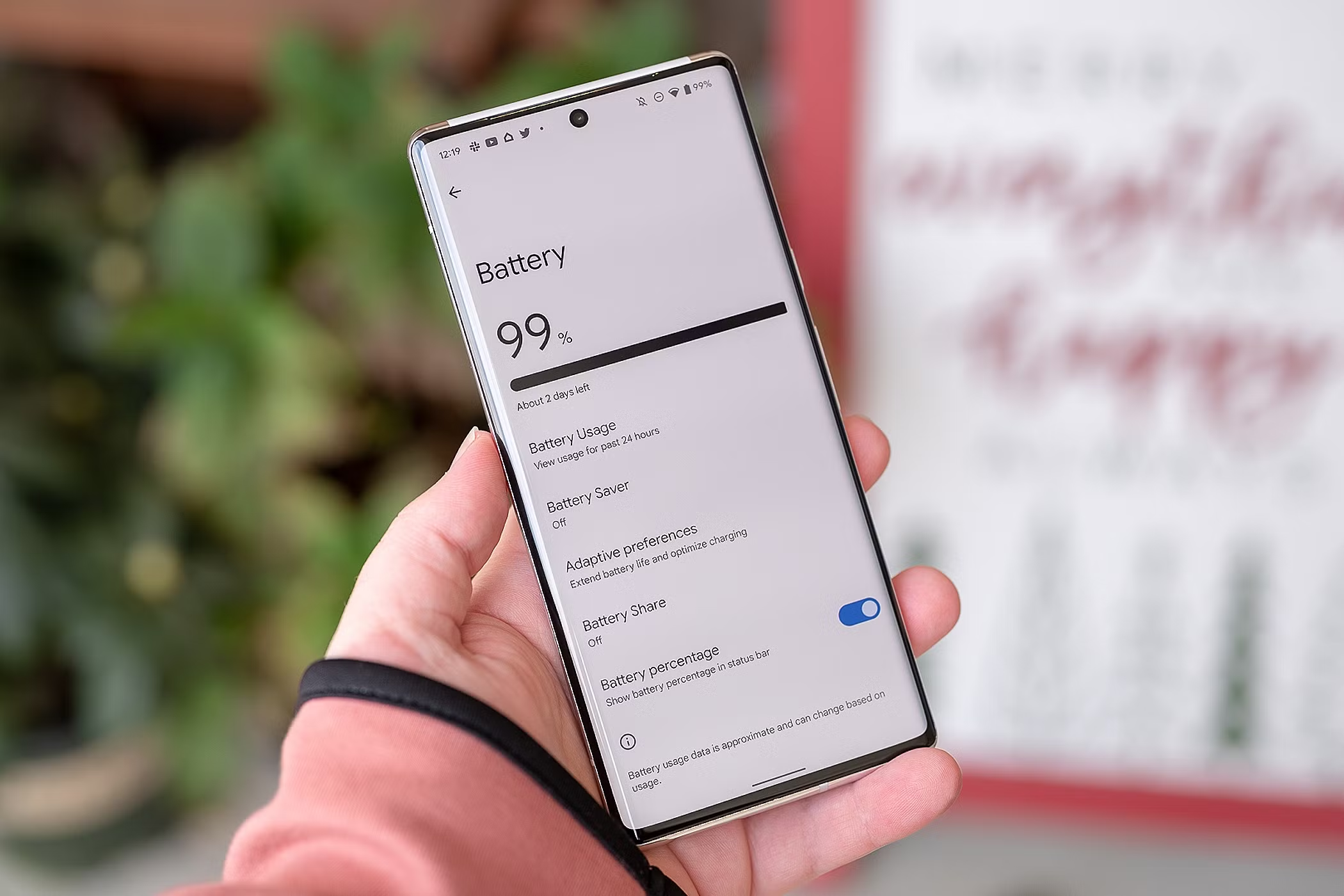
Pixel phones get some exclusive features in Android 16 (Adaptive Charging, improved Adaptive Battery). If you own a Pixel, use these device-specific toggles for the best results.
Adaptive Charging & Optimized Charging
Adaptive Charging reduces battery wear by learning your charging schedule and slowing charging at high percentages until just before you unplug. Enable it in:
Settings → Battery → Adaptive preferences → Adaptive Charging
Adaptive Connectivity
Pixels can switch between radios intelligently (Wi-Fi / LTE / 5G) to save power — keep Adaptive Connectivity enabled for a balance of performance and battery efficiency.
Battery Share & Power Management
Pixel’s “Battery Share” and the power management panel give a quick overview of top apps and quick toggles — use them for instant diagnosis and adjustments.
Learn more tips for speeding up your phone here: How to Speed Up an Old Android Phone
Battery Health — When to Replace the Battery
Software fixes only go so far. If your battery health has dropped (charging cycles, heat damage), physical replacement might be the right call.
Signs of a failing battery
- Very rapid drop from 100% to 80% within a short time
- Phone shuts down at 20–30% even after calibration
- Device becomes hot during light use
- Battery capacity shows a large drop in diagnostics or third-party apps
How to check battery health
- Settings → Battery → Battery health (if available)
- Use OEM diagnostic codes or apps from the Play Store for an estimate
- Professional battery tests at a repair shop give the most accurate read
When replacement is necessary
If health is below ~80% and your usage is significantly impacted, replacement restores usable capacity and often removes throttling caused by thermal protection.
Related reading:
How to Speed Up an Old Android Phone ·
How to Fix App Not Installed on Android ·
Android Won’t Charge? Try These Fixes ·
More Android Customization Guides
Final Summary
By checking Battery Usage, restricting background activity, turning off unnecessary scanning, and optimizing your device with Android 16’s built-in tools, you can significantly extend battery life. Add in smart charging habits and OEM-specific settings, and your Android device will last longer throughout the day — without sacrificing important features.
Frequently Asked Questions
Why is my battery draining so fast all of a sudden?
Usually caused by a misbehaving app, recent update, poor signal, or background sync loop.
Does closing apps improve battery life?
No — force-closing apps too often can make battery life worse because they relaunch from scratch and use more CPU.
Should I use third-party battery saver apps?
Generally no. Android’s built-in battery tools are safer and more effective.
Which app drains battery the most?
Typically social media (Facebook, TikTok), GPS apps, messaging apps with constant sync, and poorly optimized apps.
Author: AndroidTechZone Editorial • Updated: 2025-11-23