
How to Manage App Permissions Safely on Android (2025 Guide)
Every app on your Android phone asks for access to something — camera, microphone, location, contacts, files, or the ability to run in the background. Many ask for sensible access; others request permissions that simply aren’t necessary. Left unchecked, permissions can cause privacy leaks, increase battery drain, and let apps collect data you never intended to share.
Android 16 improved controls (one-time permissions, auto-reset, Privacy Dashboard), but the strongest protection remains active management. This guide takes you from basics to advanced troubleshooting: how permissions work, which ones are risky, how to audit and change them, OEM quirks (Samsung, Pixel, Xiaomi, OnePlus), real abuse examples, runtime vs install-time permissions, and what to do when denying permissions breaks an app.
- Why App Permissions Matter
- What Are App Permissions?
- Permission Categories Explained
- How to Audit & Review Permissions
- Managing Permissions for Specific Apps
- High-Risk Permissions to Watch
- Advanced Permission Abuse Examples
- Runtime vs Install-Time Permissions (Deep Dive)
- Android 16 Privacy Features
- OEM Differences (Samsung / Pixel / Xiaomi / OnePlus)
- Troubleshooting When Permissions Break an App
- Best Practices
- FAQs
Why App Permissions Matter
Permissions are the gatekeepers between apps and the sensitive data or hardware on your phone. When granted sensibly, they enable powerful features (navigation, photo capture, voice messages). When granted carelessly, they let apps do things you didn’t expect — track your location continuously, read your messages, or access your photos.
Two practical problems stem from poor permission hygiene:
- Privacy risk: unauthorised data collection and profiling.
- Battery & performance cost: background sensors and location polling drain power and CPU.
What Are App Permissions?
App permissions are explicit approvals you give an app to access a protected resource (camera, mic, contacts) or run actions (draw over other apps, modify system settings). Android groups them into categories and enforces them at runtime for sensitive items — that means the app must ask you while it runs, not just at install time.
Key permission states you’ll see in Android 16:
- Allow — full access.
- Allow only while using — access when the app is visible/foreground.
- Ask every time — prompt each time access is requested.
- Deny — no access.
- Auto-reset — Android revokes permissions after long inactivity.
Permission Categories Explained
Understanding categories helps you decide what to allow. Short descriptions and practical advice follow:
Location
Use: Navigation, geo-tagging, localized services. Advice: use “Allow only while using” and avoid background location unless necessary (e.g., delivery or tracking apps).
Camera
Use: Photos, QR scanning. Advice: prefer one-time or only-while-using for non-photo-heavy apps.
Microphone
Use: Voice calls, voice notes, recording. Advice: deny for games or utilities that do not need it.
Contacts / SMS / Call logs
Use: Messaging or dialer apps. Advice: grant only to trusted communication apps; avoid for shopping or games.
Storage / Files & Media
Use: Photo editors, file managers. Advice: consider scoped storage and one-time access if possible.
Notifications
Use: Alerts and updates. Advice: mute or disable non-essential channels to reduce interruptions and background wakeups.
Background activity
Use: Messaging, background sync. Advice: disable for apps not requiring constant sync to preserve battery.
How to Audit & Review Permissions (step-by-step)
Make permission audits a habit — monthly is a good cadence. Here’s the cleanest workflow on Android 16:
- Open Settings → Privacy → Permission manager.
- Pick a permission type (Camera, Location, Microphone).
- Review the list of apps that have that permission.
- Tap an app and change to “Allow only while using”, “Ask every time”, or “Deny”.
- Open the Privacy Dashboard (in Privacy) to see recent access events for the last 24 hours.
When you remove a permission, test the app briefly to see if core features are impacted; many apps degrade gracefully, but some will require a specific permission to function.
Managing Permissions for Specific Apps
Adjusting per-app permissions is the most direct way to limit unnecessary access.
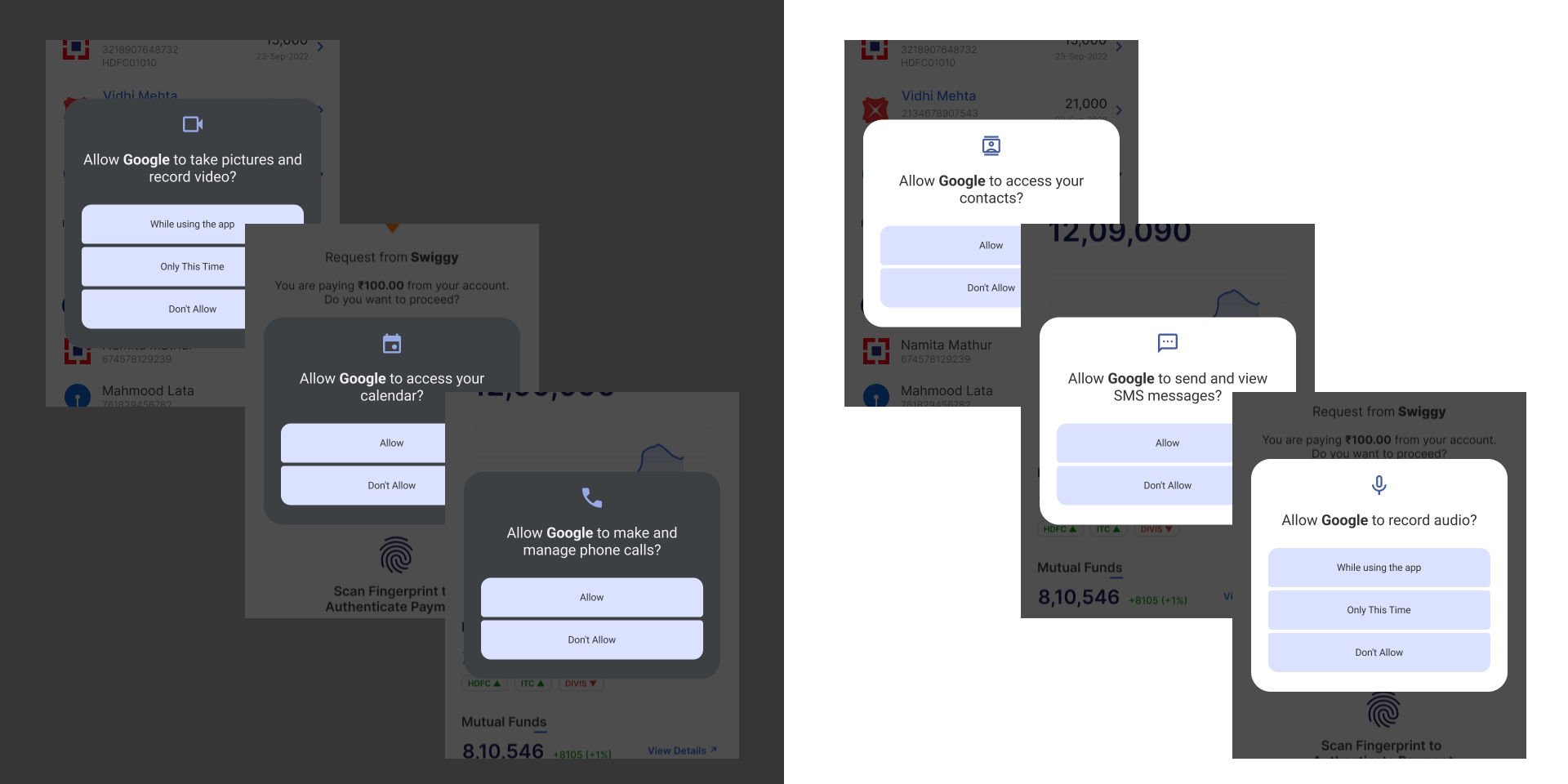
Per-app workflow
- Settings → Apps → Select app → Permissions.
- Review each permission and choose the appropriate level.
- If the app shows a permission rationale, read it critically — developers sometimes conflate marketing with necessity.
If an app asks for many unrelated permissions (e.g., a simple utility requesting contacts, mic, and location), consider replacing it with a more focused alternative.
High-Risk Permissions You Should Watch Closely
These permissions often expose the most sensitive data. Treat requests for them with caution:
- Background location: enables continuous tracking.
- Microphone: potential for eavesdropping.
- SMS & Call logs: sensitive communication data, used in fraud.
- Contacts: social graph for targeting and spam.
- Access to files & photos: exfiltration risk.
When in doubt, deny and test. Many apps will prompt again with an explicit reason; a vague explanation is a red flag.
Advanced Permission Abuse Examples (real-world)
Below are concrete behaviors we’ve seen in the wild — knowing them makes it easier to spot shady apps.
1. Hidden background recording
Some apps request microphone access and then keep a background service active for long periods. You’ll notice battery drain, increased network usage, or mic indicator activity in the status bar.
2. Location fingerprinting
Beyond GPS, apps can correlate Wi-Fi, Bluetooth, and beacon data to build precise movement patterns. If a utility app requests background location and a list of nearby Wi-Fi networks, question why.
3. Data harvesting via contacts
Apps that upload your address book to servers for “friend suggestions” are harvesting personal graphs. Provide contacts only to trusted communication apps and consider removing contacts access after use.
4. Overprivileged ad SDKs
Free apps often include third-party SDKs that request device info, identifiers, and tracking permissions — you see this as many unrelated permissions being requested during app updates.
Runtime vs Install-Time Permissions — Deep Dive
Understanding the difference helps you control what happens when and why:
- Install-time permissions are older and limited to low-risk items (internet). Most modern sensitive permissions are not granted at install.
- Runtime permissions (camera, mic, location) must be requested when the app runs and you can choose the level at that moment.
- One-time permissions (Android 11+) let you grant access for a single session; Android 16 expanded and refined this behavior.
Practical rule: when an app first asks, choose the least-privileged state that still allows the feature to work (e.g., “While using” or “Ask every time”).

Android 16 Permission & Privacy Features (2025)
Android 16 introduced a range of user-facing improvements:
- Auto-reset: Unused apps lose granted permissions automatically after ~90 days.
- Privacy Dashboard: Clear logs of which apps used camera, mic, location in the last 24 hours.
- More granular dialogs: Apps can request approximate vs precise location and the OS is stricter about background access.
- Privacy indicators: camera/mic active icons in the status bar.
Use these features to audit and detect unexpected access quickly.
OEM Differences — What Samsung, Pixel, Xiaomi & OnePlus Do Differently
Manufacturers add extra controls — sometimes helpful, sometimes confusing. Key differences you should know:
Samsung (One UI)
- “Unused apps” auto-revocation and a strong Permission Manager UI.
- Device care tools to sleep apps and restrict autostart.
Google Pixel
- Pure Android experience; the clearest Privacy Dashboard and indicators.
- Adaptive privacy features are often first to roll out here.
Xiaomi / HyperOS (MIUI lineage)
- Aggressive battery management and autostart blocking. Check autostart and background settings when permissions are revoked unexpectedly.
OnePlus / Oppo / Realme (OxygenOS / ColorOS)
- Strict battery optimizations; good per-app permission UIs but sometimes aggressive background kills.
When changing permissions, keep OEM behavior in mind — sometimes a “missing notification” is the OEM’s battery manager, not the permission setting.
Troubleshooting — When Denying Permissions Breaks an App
Denying a permission can occasionally stop important features. Here’s a careful way to diagnose and fix problems:
- Test the app after revoking the permission to see which feature fails.
- If the feature is essential, try “Allow only while using” first.
- Clear app cache (Settings → Apps → [App] → Storage → Clear cache) and retry.
- Reinstall the app if it remains unstable; this removes corrupted permission states.
- Contact support if a required permission seems excessive — reputable developers will explain why they need it.
Apps That Commonly Ask for Too Much
Be especially cautious with:
- Flashlight apps (often request unnecessary permissions)
- Free games with many ad SDKs
- Wallpaper and customization apps requesting storage and network
- Unknown or low-download VPNs
Prefer reputable apps (official publishers, high user ratings, clear privacy policies).
Best Practices — Your Permission Checklist
- Review Permission Manager monthly.
- Use one-time and while-using permissions whenever possible.
- Uninstall apps that request unrelated permissions.
- Disable background location & background activity for non-essential apps.
- Use the Privacy Dashboard to watch for unexpected microphone or camera access.
- Keep Android and apps updated — fixes reduce abuse vectors.
Frequently Asked Questions
Can apps spy on me without a permission?
No. Android enforces permission checks at the OS level. If an app accesses protected resources without the permission, it’s a vulnerability and should be reported.
Will revoking permissions make the app unusable?
Sometimes. If an app requires a permission for core functionality, try “Allow while using” first. If it still fails, evaluate whether the app’s feature is worth the permission.
How often should I check permissions?
At least monthly, and immediately after installing or updating apps that handle sensitive data (banking, messaging, health).
Does managing permissions help battery life?
Yes — particularly limiting background activity and background location. These controls reduce sensor use and network wakeups that drain battery.
Author: AndroidTechZone Editorial • Last updated: 2025-11-23