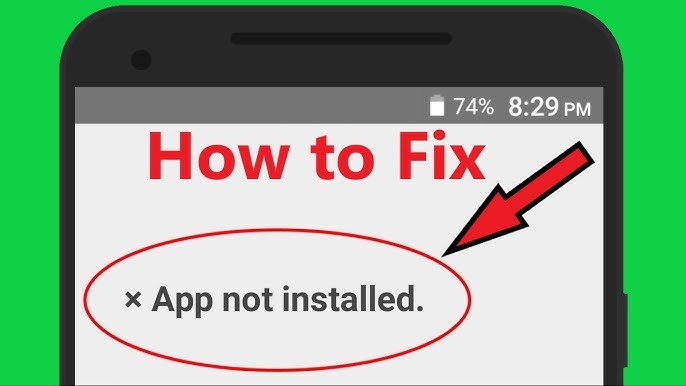
Seeing an “App not installed” error when trying to install or update apps on your Android device? This common issue affects APK installations, Play Store downloads, and system app updates — but the fix is simple once you know where to look.
In this guide, we’ll walk through seven easy ways to fix the “App not installed” error on Android 13, 14, and 15, including cache resets, file integrity checks, and permission tweaks.
1. Check for Storage Space
Insufficient storage is the most common reason for failed installations. Go to Settings → Storage and make sure at least 1GB is free before retrying. You can delete unused apps or move large files to an SD card.
For SD card setup help, see our guide on how to move apps to an SD card.
2. Clear the Package Installer Cache
The Android Package Installer can hold corrupted data. Reset it by going to Settings → Apps → All Apps → Package Installer → Storage → Clear Cache and then Clear Data. Reboot your phone afterward.
3. Enable “Install Unknown Apps” Permission
If you’re installing an APK manually, Android may block it. Go to Settings → Apps → Special Access → Install Unknown Apps and enable it for the file manager or browser you’re using.
Need a safe file manager? Check our list of best file manager apps for Android.
4. Remove Conflicting App Versions
If an older or modified version of the same app is already installed, the new APK can’t overwrite it. Uninstall the older version before reinstalling the updated one.
5. Check File Integrity
Sometimes, the APK itself is incomplete or corrupted. Download apps from verified sources or re-download from the Play Store. Avoid renaming or modifying APKs, as it can break their signatures.
6. Reset App Preferences
Resetting app preferences restores default permissions, which can solve installation restrictions. Go to Settings → Apps → Reset App Preferences and confirm.
7. Use ADB (Advanced Option)
If all else fails, connect your device to a computer and install the app via ADB. Run the following command:
adb install appname.apkThis bypasses UI-level permission conflicts and is especially effective for system-level apps.
Tip: If you prefer not to use ADB, try a trusted file manager like
Files by Google
or
Solid Explorer.
Both support secure APK installations directly from your storage.
8. Additional Fixes for Samsung, Xiaomi, and Other Devices
Some Android brands customize their security systems, which can also cause the “App not installed” error. If you’re using a Samsung, Xiaomi, or Huawei phone, check these brand-specific fixes:
- Samsung: Go to Settings → Battery and Device Care → Storage → Apps and make sure your file manager or browser isn’t restricted. Samsung’s optimization features sometimes block APK access.
- Xiaomi: Open Settings → Privacy Protection → Special Permissions → Install Unknown Apps and grant permission for your file manager.
- Huawei: Use the default “Files” app or the AppGallery for APKs. Third-party installers can be blocked by EMUI’s security layer.
If you still face issues after these steps, try reinstalling the app directly from the Google Play Store. This resets the signature verification process and ensures a clean installation.
9. Prevent the Error in the Future
To avoid seeing this message again, always download apps from trusted sources and avoid renaming or modifying APK files. Use a reliable file manager and keep your device storage above 15% free space. Android’s security layers and app signatures are stricter in Android 13–15, so valid packages are key to smooth installs.
For more maintenance tips, see our guide on best cleaner apps for Android — these help keep your storage optimized for future updates.
Final Thoughts
Most “App not installed” errors come down to storage, permissions, or file integrity issues. Following the steps above usually resolves the problem quickly. If it persists, try resetting Google Play Services or using a verified file manager for installation.
Next, read our guide on how to speed up an old Android phone to boost performance after fixing installation issues.
– AndroidTechZone Editorial Team